Tutorials
Replace / update matrix
Shoppers keep seeing the live matrix until you confirm a replace. Confirming mapping replaces live rows, takes the product offline (draft), and bumps matrix version. You must publish again.
1.Stage a new file
Upload a new CSV or Excel while the live matrix stays online. If headers match, you can keep the previous mapping; otherwise remap. Download live matrix exports the current import as a flat CSV (not a staged file).2.Review the change preview
When shown, review rows added or removed and price, part number, or lead time updates. Smaller edits (rename labels, list ↔ range, or removing an option on a flat matrix when merges do not conflict) can avoid a full re-upload; saving those still demotes to draft and needs republish.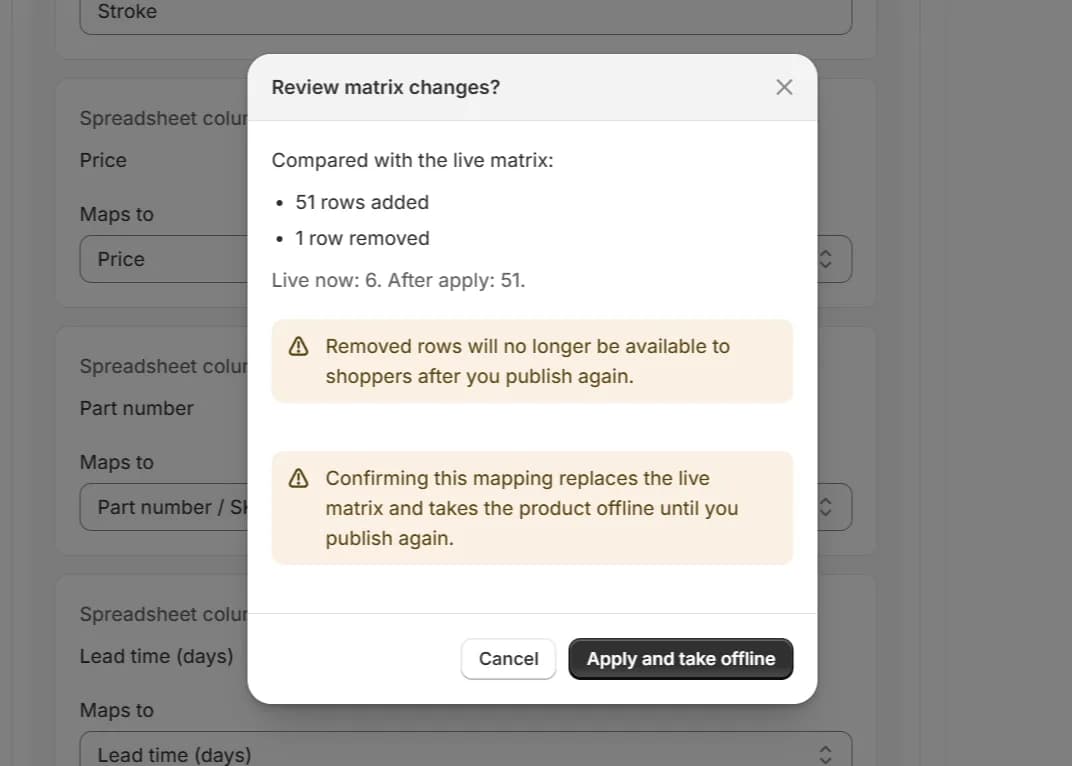
Change preview highlights rows added or removed and price or field updates. 3.Confirm, then publish again
Confirming mapping replaces live rows and takes the product offline. Review, then Publish again so the updated matrix is live.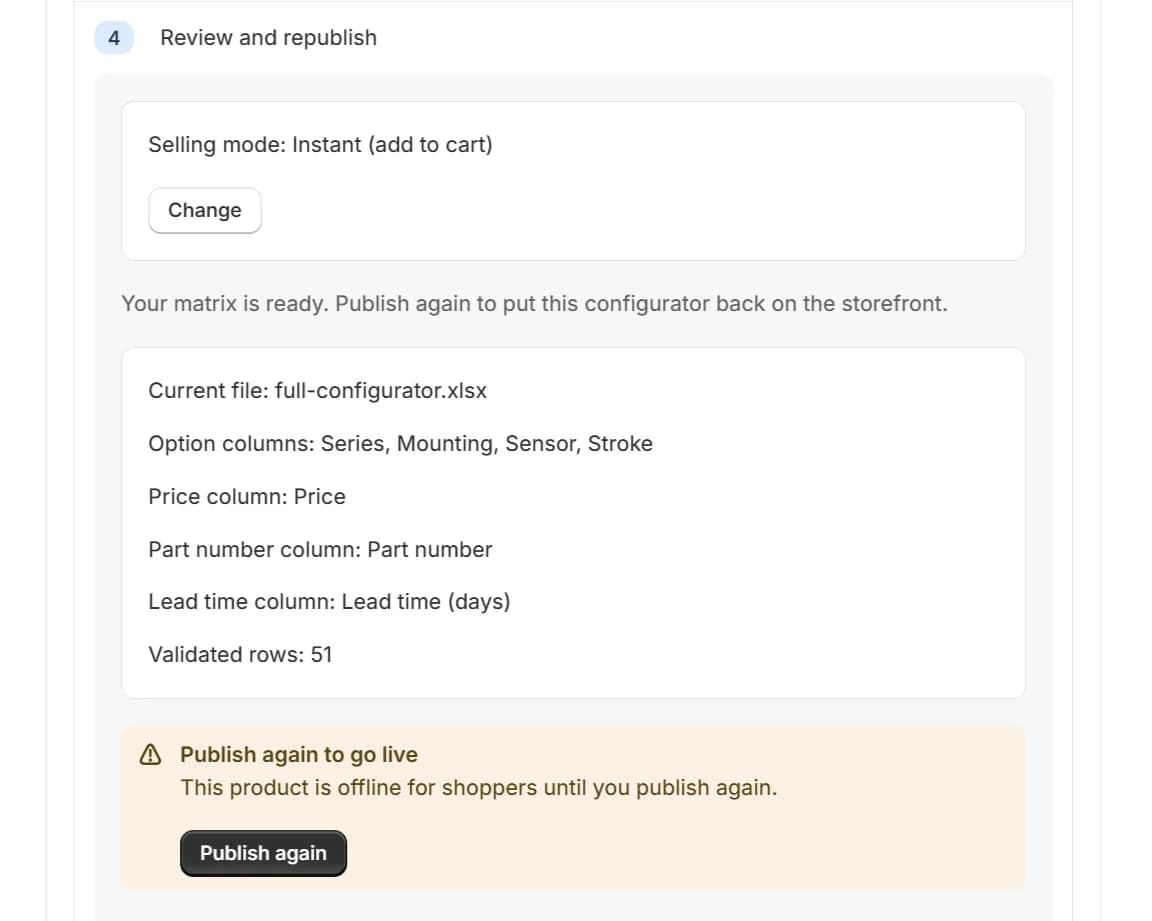
After confirm, the product is draft until you publish the new matrix. Expected result
The new matrix is published. Older Instant cart lines are blocked at checkout until the shopper reconfigures. New adds use the updated prices and combinations.
If this fails…
Headers changed: remap columns before confirming. Structural changes (new columns, price/meta remap, grid dimension changes, conflicting option removes) need Replace spreadsheet, not a small edit. After republish, old cart tokens stop pricing at checkout; shoppers re-add or use Change configuration. Cart remove/clear still works. See Troubleshooting.